AI voiceover for PowerPointGive your PowerPoint a voice.

Upload your PowerPoint presentation and pick a voice. Each slide's speaker notes are read aloud and the voice is put on that slide, timed to move on by itself. You get back a narrated slideshow that still opens in PowerPoint.

  • No microphone, no recording. A voice you pick reads the notes you already wrote.
  • Your slides stay yours. Layout, pictures and animations are left as they were.
  • Two files back. The narrated .pptx, and one MP3 of the whole narration.
  • First deck free. Sign in with your email: no password, no card.

Your presentation stays on your computer until you choose to narrate it.

  1. UploadYour notes are read from each slide.
  2. Pick a voiceCheck or edit the notes first.
  3. Get it backThe same deck, now talking.

Example decks, one for each kind of presentation

Press play to hear a deck narrated while its slides move on. Under each slide is what is in its speaker notes, which is what the voice reads.

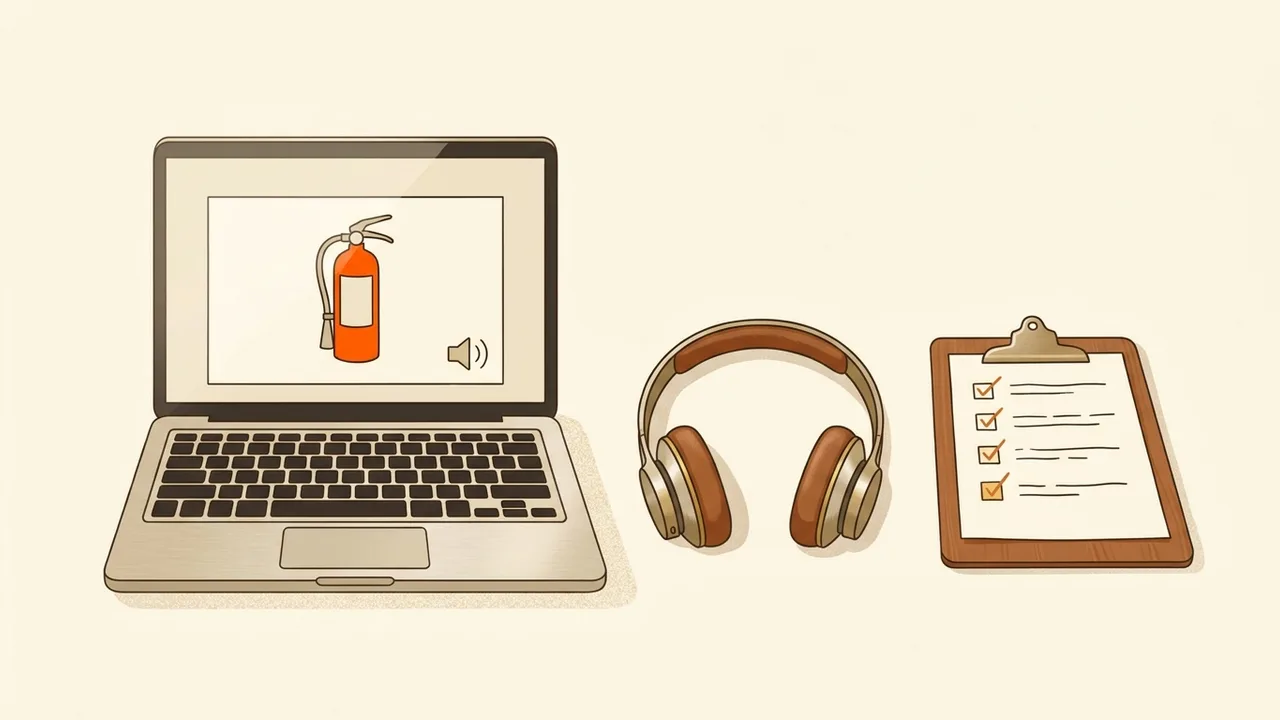
Slide 1: Module 2: Fire safety

The voice reads

Welcome to module two. In the next few minutes you will learn which extinguisher to use on which fire, and what to do when the alarm sounds.

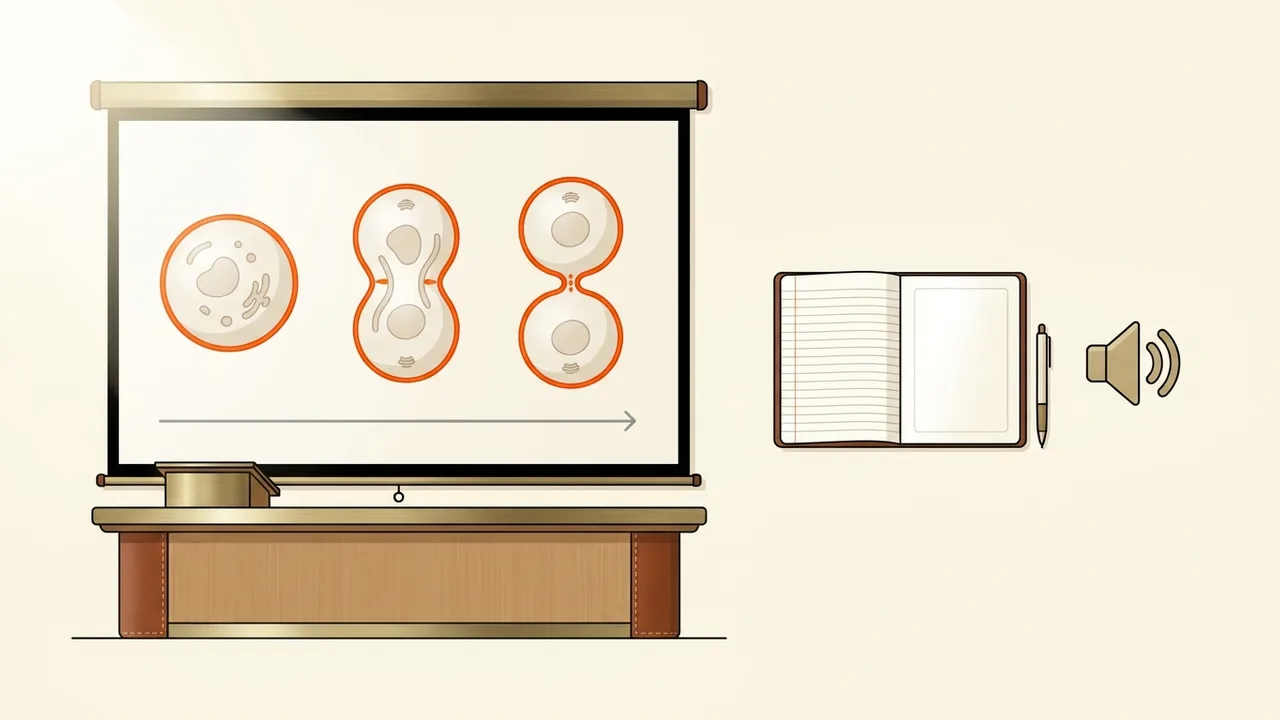
Slide 1: Lecture 7: Cell division

The voice reads

Today is cell division. By the end of this lecture you should be able to name the four stages of mitosis, and say what goes wrong when one of them fails.

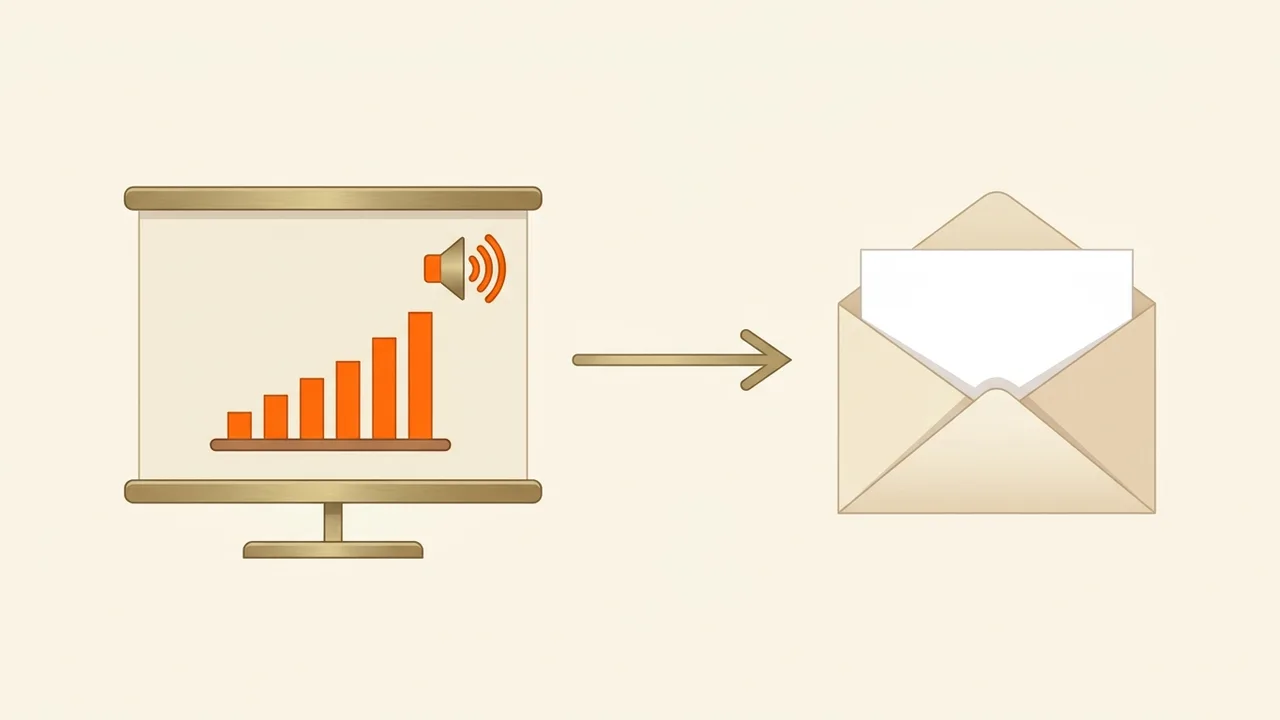
Slide 1: Why switch this quarter

The voice reads

Thanks for taking a look. This is the short version of what we covered on the call: what waiting costs you today, what changes in the first week, and what we need from you to start.

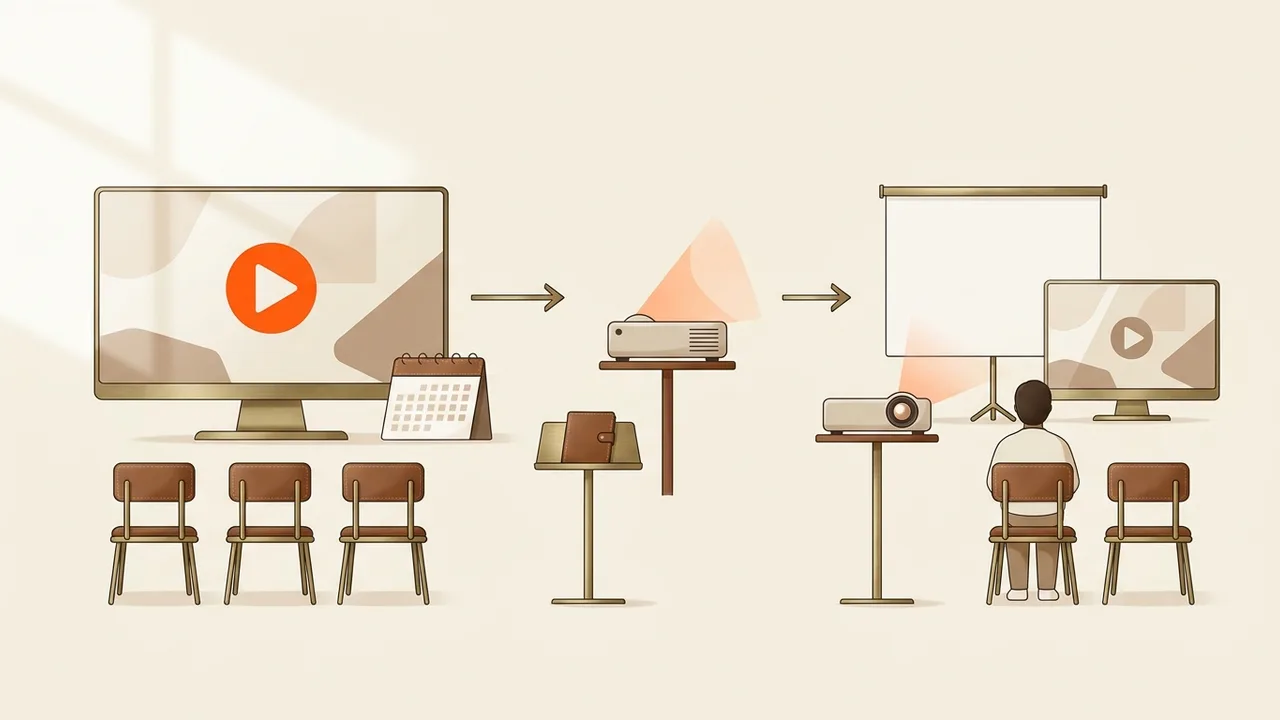
Slide 1: Spring product update

The voice reads

Hello, and welcome to the spring product update. If you missed the live session, this is the same talk, from the first slide to the last.

All examples

Three steps

  1. Upload your PowerPoint

    Drop the file in the box. It is opened in your browser, and the speaker notes are read from each slide. If there are none, they can be written for you from what is on the slides.

    The screen at this step, with an example deck.
  2. Check the notes, pick a voice

    The deck opens as one card: how many slides have notes, which have none, and a voice already chosen. Fix or write notes if you want, and play a few voices.

    The screen at this step, with an example deck.
  3. Get your deck back

    The same file, now talking, plus one MP3. Slides and animations untouched.

    The screen at this step, with an example deck.

How it works, in more detail

What an AI voiceover for PowerPoint is

It is narration made from text instead of from a microphone. You write what should be said, and a voice says it. You may know it as text to speech. For a PowerPoint presentation (a PPT or PPTX file) the text already has a home: the speaker notes under each slide.

Doing this by hand takes three jobs per slide: make the audio, put it on the slide, and set the slide to play it and move on. This site does all three for every slide at once. What comes back is still a PowerPoint file: a narrated slideshow, with the voice inside it, that anyone can open and play.

It suits you when

  • The presentation is finished and you know what you would say on each slide.
  • The content will change, and you do not want to record again each time it does.
  • Several presentations, or several authors, should sound like one course or one company.
  • You have no quiet room, no good microphone, or no wish to hear your own recording.
  • The deck has to be ready this week, not after a recording session.

Record it yourself when

  • You present best talking freely and do not want to write a script.
  • The voice has to follow each animation step. Here the narration plays once per slide, from the moment the slide appears.
  • The delivery is the point: a joke, a pause, a live demo.
  • It must be your voice today. Your own voice is part of paid accounts, which are not on sale yet.

The voice reads your speaker notes

Speaker notes are the text under each slide, where you write what you would say out loud. They are the script. The slide shows the picture; the notes say the words.

  • A slide with notes is narrated. The voice reads them as written.
  • A slide with no notes stays silent, as long as other slides have notes. Use that for a title slide or an appendix.
  • A presentation with no notes at all needs notes before it is narrated. Write them yourself, or have them written from what is on each slide and check them.
  • You can check first. After uploading, see every slide beside its notes and edit or write them before narrating.

Before you narrate, the page tells you how many slides will be read and which ones will not. How to write notes that sound right aloud

Example deckQuarterly review.pptx
  1. 1Narrated
  2. 2Narrated
  3. 3Narrated
  4. 4Silent

What went well

  • New customers up on last quarter
  • Support replies within a day
2 / 4

Speaker notes · read aloud on slide 2

Let's start with what went well. We brought in more new customers than last quarter, and support now replies within a day.

What changes in your presentation, and what does not

The file you get back is your file, with a voice added. Nothing on the slides is redrawn or rebuilt.

Added

  • The narration on each slide that has notes.
  • The setting that plays it by itself when the slide appears, with the sound icon hidden during the show.
  • A timing on each narrated slide, so it moves on when the narration ends.

Left as it was

  • Your slides, layouts, fonts and pictures.
  • Your animations.
  • The speaker notes inside the file, even if you edited them on the site. The narration follows your edits; the notes in the returned file stay as they were in your deck.

Before you upload: six things to check in your notes

The voice reads the notes exactly as written, so five minutes here is the difference between a presentation that sounds read and one that sounds presented. You can fix all of this on the site after uploading, too.

  1. Every slide that should speak has notes

    A slide with no notes is not narrated. After uploading, the page shows which slides those are.

  2. The notes are sentences

    "Mention rota, thank team" works as a reminder for you. A voice needs the sentences you would say.

  3. Notes to yourself are gone

    "Pause here" and "check this figure" are read out like everything else.

  4. Numbers and symbols are written as said

    "Twenty percent", "about half", "x squared". One or two numbers per sentence is all a listener can hold.

  5. Silent slides are empty on purpose

    Leave the notes of a title slide, a quiz or an appendix empty and it stays quiet.

  6. Each slide is short enough to listen to

    About 140 words is a minute of speech. If a slide needs much more, it is usually two slides.

How to write speaker notes, with a before and after

Hear the voices

Press play on any voice. Nothing plays until you do.

Loading voices…

Paid accounts

Or narrate in your own voice

Record a short sample of yourself once and read one sentence aloud. After that, any presentation you upload can be narrated in your voice from its notes, with no recording per slide and no retakes when a sentence changes. Only your account can use the voice, and you can delete it at any time.

  1. Record a sampleA short stretch of you talking naturally.
  2. Read one sentenceIt confirms the voice is yours to use.
  3. Pick it like any voiceIt appears under "Your voices".

By hand in PowerPoint, or uploaded here

PowerPoint can do all of this itself, one slide at a time. Both ways end with a narrated presentation.

By hand in PowerPointUploaded here
The voiceYou, recorded slide by slide.A voice you pick, reading your notes. Your own voice on a paid account.
Sound on the slidesInsert a sound file on each slide and set it to play automatically.Put on every narrated slide for you.
TimingsTyped in per slide, to match each sound.Each slide is timed to its own narration.
A changed sentenceRecord that slide again, insert it and time it again.Edit the notes and narrate the deck again.
What you needA microphone, a quiet room and a steady voice.A finished presentation with speaker notes.
When it is readyWhen you have recorded every slide.Your narrated deck arrives by email within a day.

The manual steps: add a voiceover to PowerPoint ·record narration in PowerPoint

After you get your narrated PowerPoint back

The narrated file is an ordinary PowerPoint presentation. Everything PowerPoint can do with a presentation, it can do with this one.

Play it

Open it in PowerPoint and start the slide show from the beginning. The voice starts on the first narrated slide and the slideshow runs to the end.

Send it

Share the .pptx the way you share any deck, and tell people to start the slide show. It is larger than your original, because the narration is inside it.

Make it open straight into the show

Save a copy as a PowerPoint Show (.ppsx). It opens playing, with no editing view. How to set it up

Loop it on a screen

For a lobby or a stand, set the show to loop in PowerPoint and it starts again by itself. The steps

Export a video

PowerPoint saves a narrated presentation as an MP4 with its voice and timings. The steps for Windows and Mac

Change it later

Edit the notes and narrate the deck again. Nothing is recorded, so nothing has to match an old recording.

Who uses it

People who present for a living and want the slides to keep presenting when they are not in the room.

Pricing

Free

One deck per account. Sign in with your email, no password. Your narrated deck arrives by email within a day.

Starter: $19 a month

200 narrated slides a month, and your own voice. Opening soon.

See pricing

Guides

How to do each part yourself in PowerPoint, step by step, and where the short way fits.

All guides

Questions

Does it keep my animations?

Yes. Your slides, animations and layout are left as they were. Each narrated slide gets its audio, set to play on its own, and a timing so the slide moves on when the narration ends.

What if some slides have no notes?

They stay silent, as long as other slides have notes. The page lists which slides those are, and you can write notes for any of them, or have them written for you, before you narrate. A presentation with no notes at all needs notes first.

Can I edit the script?

Yes. Before narrating, open your slides and edit or write the speaker notes for any slide; the narration follows your edits. One limit for now: the notes inside the file you get back stay as they were in your original deck.

Which files do I get?

Your deck as a .pptx with the narration on each narrated slide, and one MP3 of the whole narration.

Which files can I upload?

PowerPoint presentations: .pptx, and also .ppsx, .pptm, .ppsm, .potx and .potm. A Google Slides deck works once you download it as a .pptx: see voiceover for Google Slides.

Is it free?

Yes for your first deck. Each account can narrate one deck for free; you sign in with your email and a one-time code, with no password and no card. Paid plans are coming. See pricing.

How long does it take?

Your deck is narrated in a queue and arrives by email within a day, with links to download the deck and the MP3.

Which languages can it narrate in?

The notes are read in the language they are written in, with a voice you pick for that language. The voice list shows every language there are voices for. The notes are not translated for you.

Can it sound like me?

Yes, on a paid account: you record a short sample once and read one sentence aloud, then any deck can be narrated in your voice. Paid plans are not on sale yet.

Can I get a video?

No, not from here yet. PowerPoint can export the narrated deck as an MP4 with the voice and timings: see how to turn a PowerPoint into a video.

What happens to my presentation?

It is opened in your browser first and is not sent anywhere until you choose to narrate it. What is stored after that is on the privacy page.

Do I have to install anything?

No. It works in your browser. The narrated presentation opens in PowerPoint like any other.

Your presentation is ready to talk.