PowerPoint voiceover guides
How to do each part yourself in PowerPoint, step by step, on Windows and Mac: voiceover, speaker notes, timings and text to speech, plus a comparison of voice tools and a length calculator. Each guide also says where uploading the deck here is the shorter way.
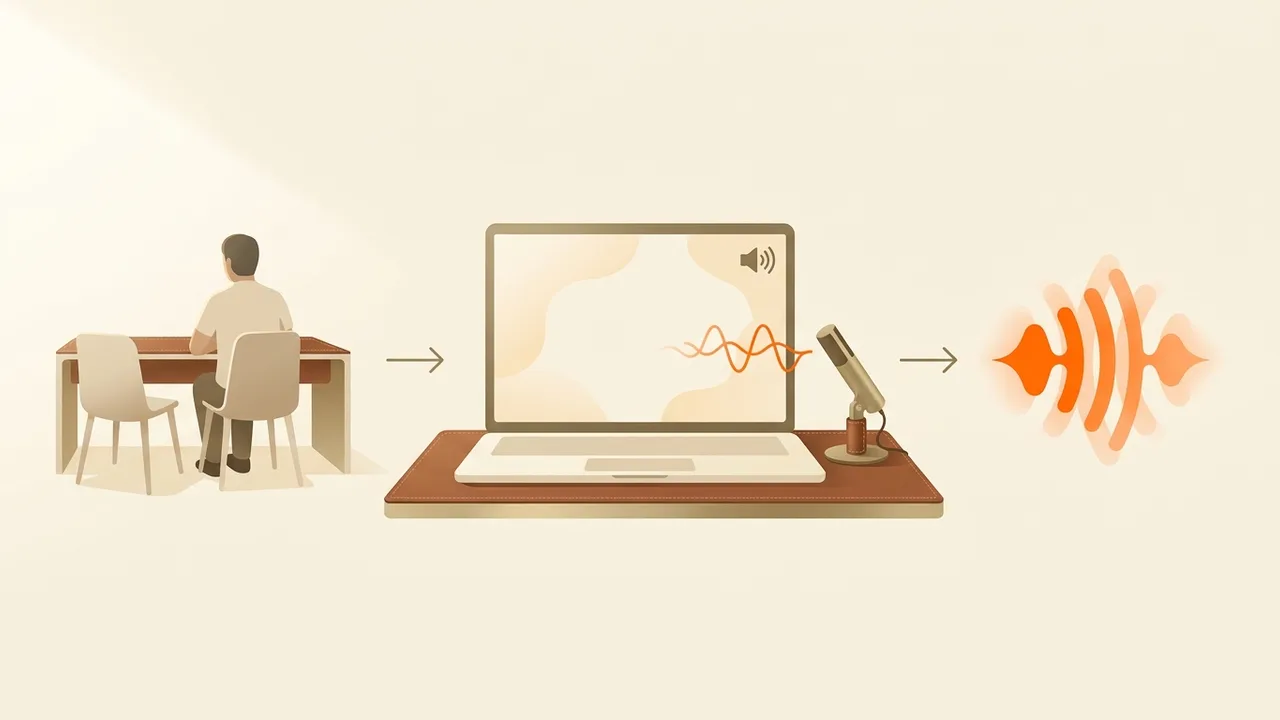 Add a voiceover to PowerPointFour ways to put sound on every slide, set to play and move on by itself.
 Add an AI voice to PowerPointPut a voice on every slide without a microphone: by hand, with an add-in, or by upload.
 Write speaker notesNotes that sound right spoken aloud, and how long to make them.
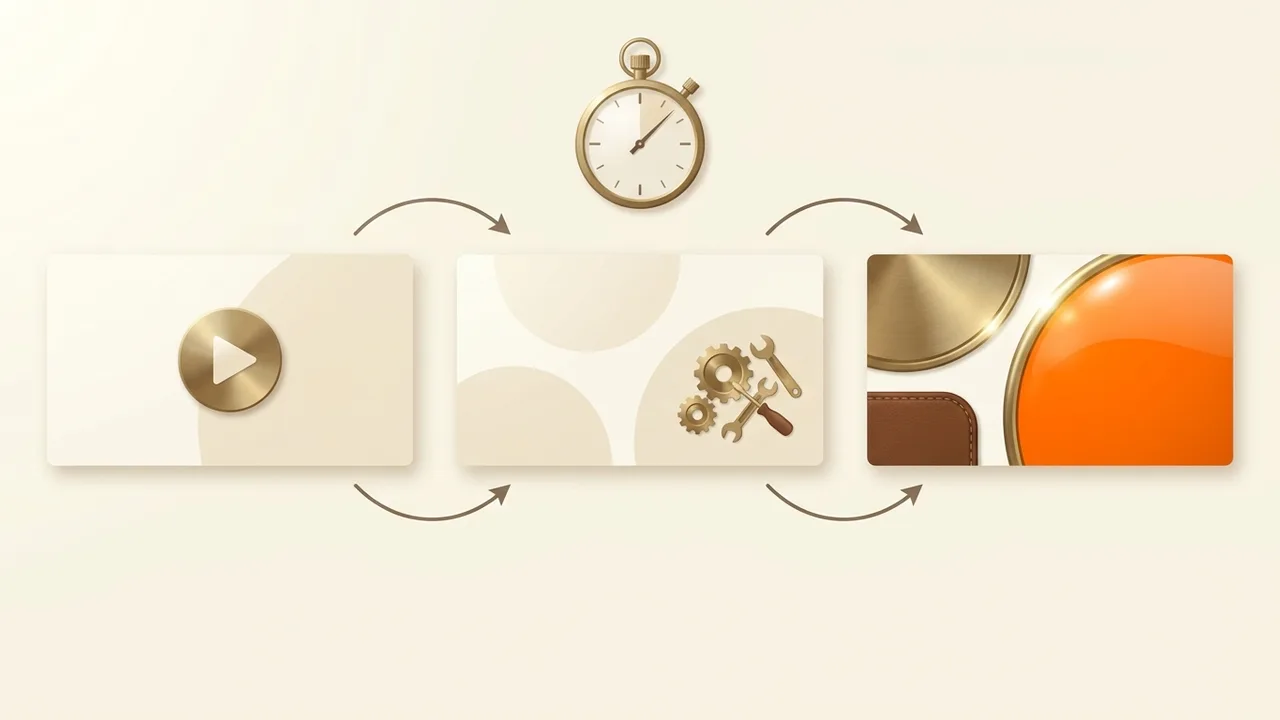 Make a slideshow play by itselfSlide timings, looping, and a file that opens straight into the show.
 Have PowerPoint read slides aloudText to speech on Windows, Mac, web and phone, and how to save a voice onto every slide.
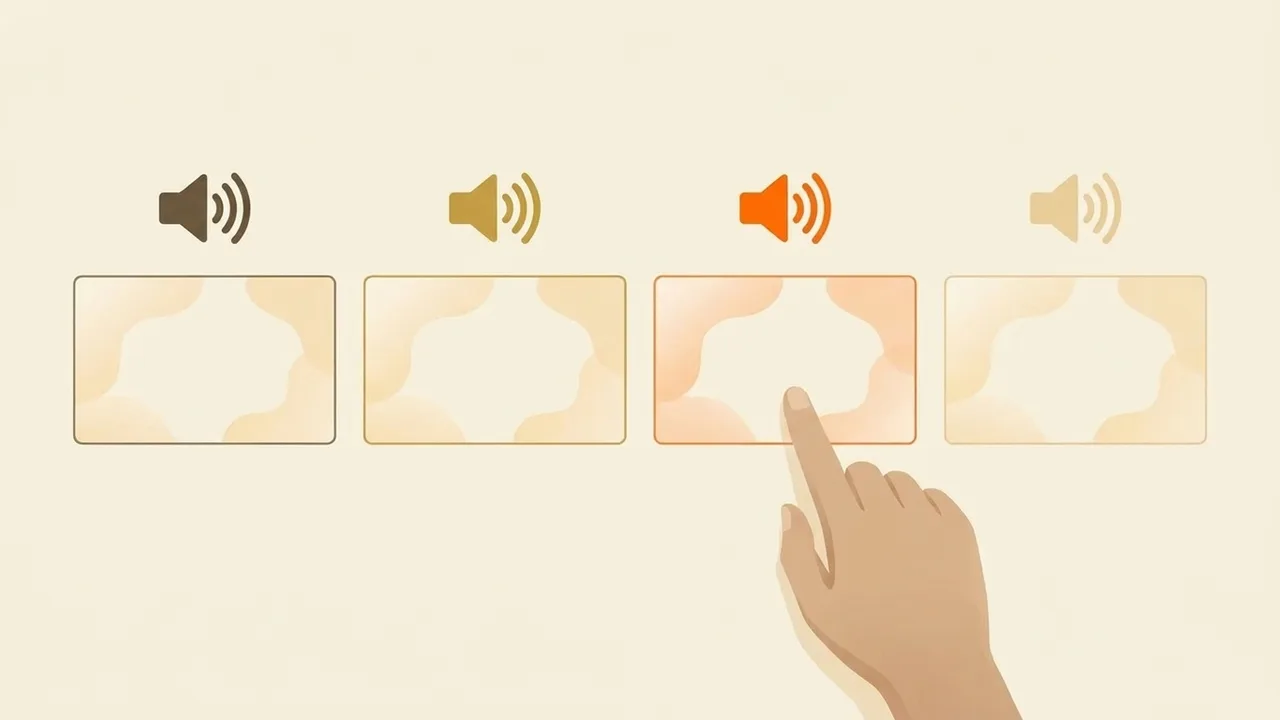 Compare AI voices for presentationsSeven voice tools by what you get back, PowerPoint support, free tier and price.
 Presentation length calculatorTurn a script, a word count or a PowerPoint into minutes.
For your kind of presentation
 Training and e-learningTurn a training deck into a module people go through on their own time.
 Lecture slidesPost slides that explain themselves, so students at home hear the lecture.
 Sales decksA deck that still makes its case after it is forwarded.
 Webinar presentationsA webinar deck that runs without a presenter, every time it is played.
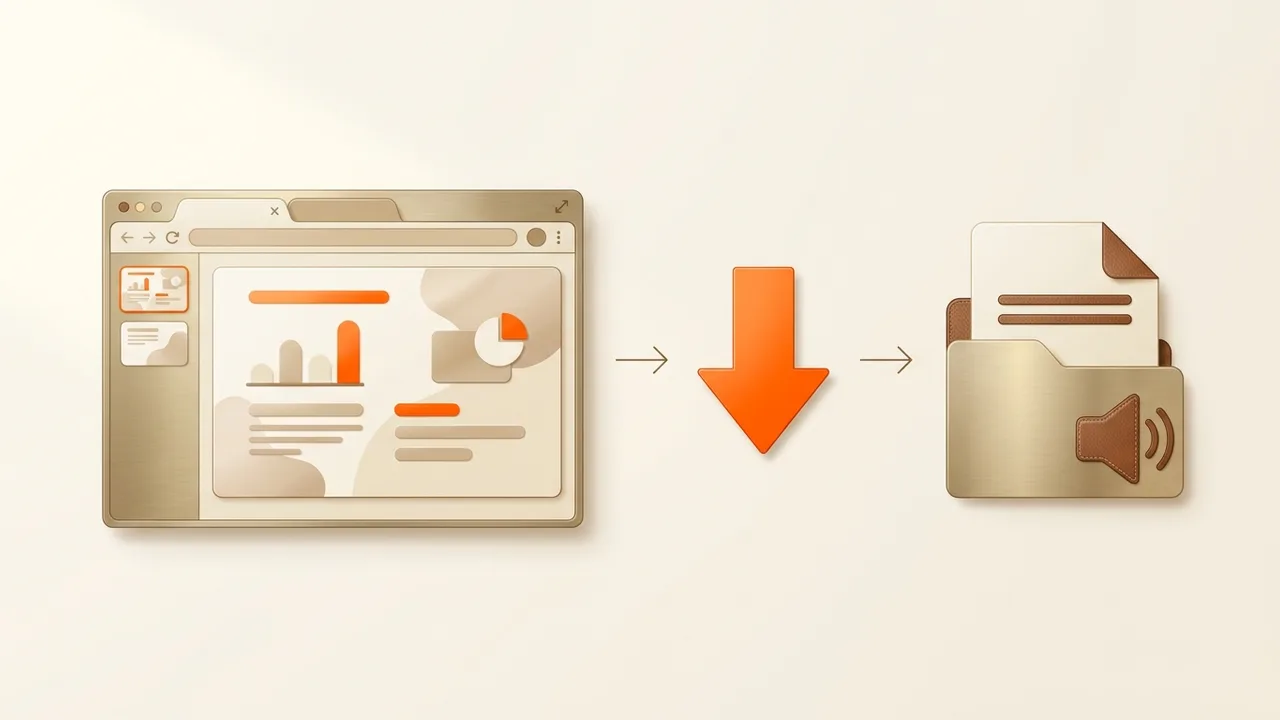 Google SlidesDownload the presentation as a PowerPoint file and upload that.
 PowerPoint to MP3The speaker notes read aloud as one audio file.